
Demystifying the Update Process: What to Do When an Update Fails
Understanding Update Failures: Key Insights and Solutions
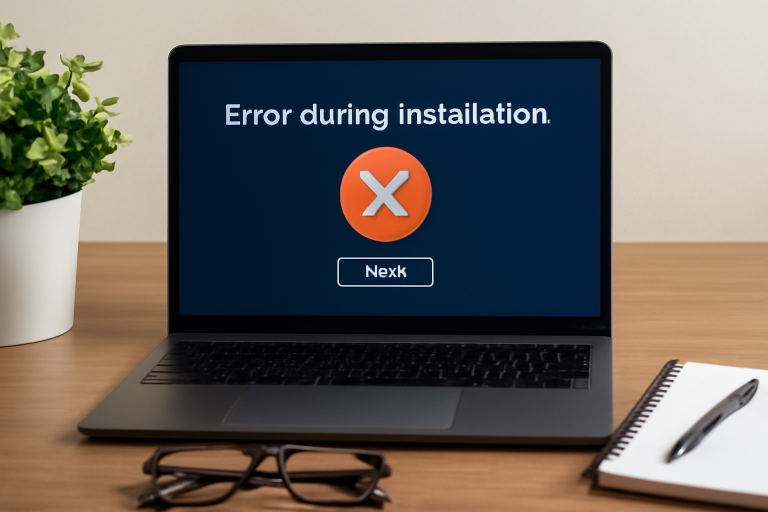
In today’s fast-paced technological landscape, software updates play a critical role in enhancing functionality and fortifying security against potential threats. Yet when users encounter update failures, it can lead to frustration and confusion. Invariably, knowing the common causes and effective remedies can simplify troubleshooting and help restore normalcy when glitches arise.
Common causes of update failures include:
- Insufficient storage space. One of the primary culprits for update failures is a lack of adequate storage. Software updates often require substantial space, and if your device is filled with large files or apps that are no longer in use, the update may fail to install.
- Corrupted files or incomplete downloads. Interruptions during the update process can result in corrupted files. For instance, if a power outage occurs while an update is being downloaded, it can lead to incomplete files that render the update useless.
- Incompatible hardware or software. With the rapid advancement in technology, some older devices may not support the latest updates, leading to incompatibility issues. This often affects systems that are not regularly maintained or those using older operating systems.
These issues, if unaddressed, can not only lead to system glitches but may also pose a risk of data loss. Timely intervention is crucial to maintaining a seamless user experience and preventing further complications.
Fortunately, there are practical steps you can take when facing update failures. For example, consider the following actions:
- Review system requirements. Familiarizing yourself with the necessary specifications before initiating an update can save you time and hassle. Each update usually includes details on the required operating system and hardware specifications.
- Free up space by deleting unnecessary files. Regularly decluttering your device by removing old images, documents, and applications you no longer use can provide much-needed space for updates to be installed successfully.
- Check for available patches or updates manually. Sometimes, an automatic update may not take effect due to connectivity issues. In such cases, traversing to the settings and manually checking for updates can help ensure you have the latest version at hand.
By staying informed and prepared regarding potential issues with software updates, you can minimize their impact. Understanding the intricacies of the update process not only empowers you but also strengthens your overall comprehension of the technology you depend on daily. With technology advancing rapidly, taking proactive steps can make all the difference in ensuring smooth transitions between software versions and enhancing your connectivity and digital security.

DIVE DEEPER: Click here to discover cost-saving strategies
Tackling Update Challenges: Essential Strategies
When an update fails, it can feel like you’re navigating a labyrinth of technical difficulties, all while trying to keep your device functioning optimally. The concern is not just about a single failed update; it’s about the potential ripple effects on security, functionality, and overall user experience. Without intervention, unresolved update issues can lead to performance headaches, as well as the risk of exposing your system to vulnerabilities.
Understanding these failure points enables users to troubleshoot effectively and reclaim control over their devices. Here are further strategies to consider in the event of update failures:
- Ensuring a stable internet connection. A reliable and consistent internet connection is essential during the update process. Fluctuating bandwidth or dropped connections can interrupt downloads and lead to errors. If possible, opt for a wired connection or ensure your Wi-Fi signal is strong to minimize interruptions.
- Utilizing device manufacturer support. In many cases, manufacturers offer tailored support and resources. This can include detailed guides, troubleshooting tips, or forums where users can share their experiences. Engaging with these resources can provide you with insights unique to your specific device model.
- Conducting a system backup prior to updates. Although not always thought of, backing up your data before attempting an update is a critical move. It serves as a safety net, allowing you to restore your device in the event of a catastrophic failure that may cause data loss during the update. External hard drives, cloud storage, or built-in backup options are all viable choices to consider.
- Verifying software and hardware compatibility. It’s essential to check if your current software version and hardware meet the necessary requirements for the update. Many updates include a list of compatible models and configurations. Staying current can help avoid unnecessary stress over updates that may not be designed for your setup.
Recognizing the importance of updates can also change your perception of these seemingly routine processes. They are doors to enhanced features, fortified security measures, and improved efficiency. However, awareness of potential pitfalls can significantly empower users to handle failure scenarios adeptly.
As we delve deeper into the implications of update failures, understanding these foundational strategies not only equips you with actionable insights but also fosters a more confident approach to technology maintenance. The right knowledge can transform troubleshooting into a manageable task rather than an insurmountable challenge, promoting a seamless digital experience overall.
Strategies for Troubleshooting Failed Updates
When facing a failed update, it’s essential to approach the situation methodically. First, examine error messages that may provide insight into what went wrong. Common issues include plugin conflicts, insufficient server resources, or compatibility problems with the current version of WordPress.One effective strategy is to deactivate all plugins before initiating an update. This process ensures that no third-party software interferes with the update. After the update, you can reactivate plugins one by one, testing functionality at each step. This practice can pinpoint which plugin, if any, is causing the conflict.Additionally, consider updating your themes and plugins to the latest versions before proceeding with a WordPress core update. Outdated themes or plugins may not support new updates, leading to failures. Regularly checking for updates not only enhances security but also improves compatibility.Another solution involves enabling debugging mode in your WordPress configuration. This setting can unveil hidden errors during updates. You can activate debugging by adding the line `define(‘WP_DEBUG’, true);` to your wp-config.php file. This practice provides helpful information for diagnosing issues.Furthermore, backing up your site before any update is crucial. Use reliable backup plugins to create a restore point. In the event of a failure, you can easily revert to a previous version without permanent damage to your content.Ultimately, understanding the update process is vital for maintaining a healthy WordPress site. By taking proactive measures, you not only reduce the chances of encountering failures but also equip yourself with the tools to troubleshoot effectively when issues arise. Embracing these practices can lead to a more resilient and reliable WordPress experience.
Resources for Navigating Failed Updates
Resources such as the official WordPress support forums and documentation can be invaluable when encountering update issues. The community is vast, and many users have shared their experiences and solutions. Engaging in forums can connect you with others who may have faced similar challenges, allowing for shared wisdom and support. Consider also utilizing professional support services if the problem persists beyond your troubleshooting efforts. Expert guidance can provide tailored solutions and restore your website to optimal functionality.
DISCOVER MORE: Click here for cost-saving strategies
Advanced Troubleshooting Techniques
When the basic strategies fail to yield results, delving deeper into the realm of troubleshooting can open the door to solutions that are not immediately visible. The process of demystifying update failures often means exploring advanced strategies that require a bit more technical finesse. Here are several techniques that can address persistent issues:
- Running the System File Checker (SFC). This built-in tool is a powerful ally in diagnosing and repairing corrupted system files that could be triggering update failures. Users can initiate a scan by accessing the Command Prompt as an administrator and typing
sfc /scannow. The SFC tool will check for problems and attempt to restore any corrupted files, ensuring your operating system is running as it should. - Utilizing the Windows Update Troubleshooter. For Windows users, Microsoft includes a dedicated tool to identify and fix common update issues automatically. By navigating to the Settings menu, selecting “Update & Security,” and then “Troubleshoot,” users can run this tool, which may highlight underlying problems and suggest or even implement fixes on their behalf.
- Performing a clean boot. A clean boot starts Windows with a minimal set of drivers and startup programs, effectively eliminating third-party conflicts that might complicate the update process. Users can access this by typing
msconfiginto the Run dialog. From there, disabling startup programs can lead to a more stable environment for updates to install successfully. - Reinstalling problematic drivers. Hardware drivers can sometimes interfere with the update process. If specific drivers have not been updated alongside the operating system or are incompatible with the current version, they may cause issues. Visiting the manufacturer’s website for the latest versions or uninstalling problematic drivers via Device Manager can sometimes pave the way for smooth updates.
Communities such as forums dedicated to tech issues can be priceless when updates fail. Engaging in conversations with fellow users who may have experienced similar situations can yield insights and solutions that aren’t found in official documentation. These shared experiences often generate unique strategies or workarounds that can expedite the resolution process.
Considering the reset option can also be a last resort for Windows users, allowing for restoration to factory settings. This extreme measure, while risky in terms of data loss, can eliminate entrenched problems and provide a fresh starting point. However, it’s crucial to back up all important data before taking this step.
Moreover, it’s important to stay informed about update quality and patch notes from software developers. Transparency in software updates can guide users in how they should approach upgrading their systems. Subscribing to notifications or newsletters from manufacturers ensures that users are always aware of known issues and fixes, which can save considerable time and frustration when an update hits a snag.
Throughout this journey of resolving update failures, remember that persistence is key. Each troubleshooting step taken contributes to a broader understanding of technology management. The right combination of advanced techniques and community support can empower users to turn what once seemed like a daunting task into a manageable routine in their digital lives.
DISCOVER MORE: Click here to optimize your cloud storage costs
Final Thoughts on Navigating Update Failures
In the ever-evolving landscape of technology, facing update failures can feel like navigating a labyrinth. However, armed with the right knowledge and tools, users can confidently embark on the journey of troubleshooting these setbacks. As we explored, from utilizing built-in tools like the System File Checker and Windows Update Troubleshooter to implementing advanced techniques such as performing a clean boot or reinstalling drivers, there are numerous pathways available to tackle the problem of failed updates.
Moreover, the significance of tapping into community support cannot be overstated. Engaging with forums and user groups provides an arena for sharing experiences and solutions that can often break through the barriers of technical challenges. Such collaboration enriches our collective understanding and fosters a sense of camaraderie among users.
As a final consideration, it’s essential to maintain an awareness of update quality and patch notes from software providers. Being informed not only prepares you for potential hiccups but also arms you with the insights necessary for effective updates. Remember, successful troubleshooting is often a blend of informed strategy, community engagement, and persistence.
In conclusion, while the update process may present its share of hurdles, the journey can transform uncertainty into empowerment. Embrace the knowledge you’ve gained, leverage community support, and continue to demystify the update process — ensuring your digital environment remains robust and secure.

Beatriz Johnson is a seasoned tech writer and digital tools expert with a passion for simplifying the complexities of technology and mobile applications. With over a decade of experience in the tech industry, she specializes in topics like productivity apps, software reviews, and emerging digital trends. Through her work, Beatriz empowers readers to make informed technology choices and stay ahead in the ever-changing world of apps and innovation.